Fix hashed filenames on Framer downloads
Fix hashed filenames on Framer downloads

Framer renames every upload to a hash, so your visitors download something like H1noQ3ayrNopaxtDGhblzV37fag.pdf. Here is the two minute fix, including the CMS setup for collections.
Key insights
Framer renames every uploaded file, so visitors download something like H1noQ3ayrNopaxtDGhblzV37fag.pdf instead of your brochure.
A small component sits between your button and the file and gives the download the name you choose. Setup takes about two minutes.
It works with any button on your page, not only the built in Framer download button.
In a CMS collection, every entry can carry its own file and its own filename, set up once for the whole collection.
Type the extension into the name yourself, so Penthouse.pdf rather than Penthouse.
In this post:
Section
Upload a PDF in Framer, connect it to a download button, and publish your site. Click that button and instead of getting your brochure or price list, the visitor's downloads folder shows something like H1noQ3ayrNopaxtDGhblzV37fag.pdf. It looks broken, and for anything people are meant to keep on their computer, like a real estate exposé or a pricing sheet, it looks unprofessional the moment they see it.
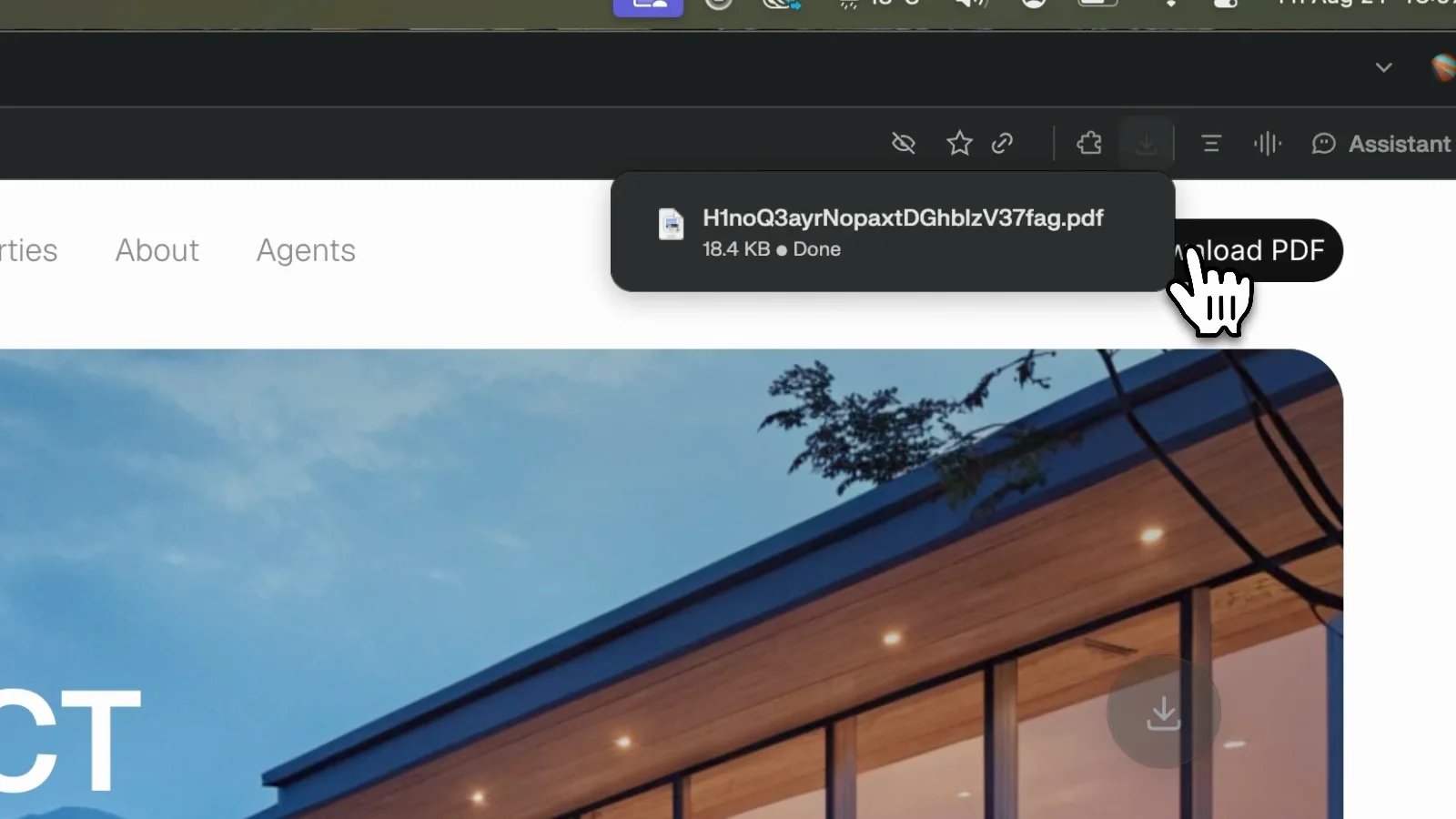
The fix takes about two minutes and works with any button on your page, not just Framer's built-in download button. It's a small component called Filename Download, and it sits between your button and the file to rename the download before it ever reaches the visitor.
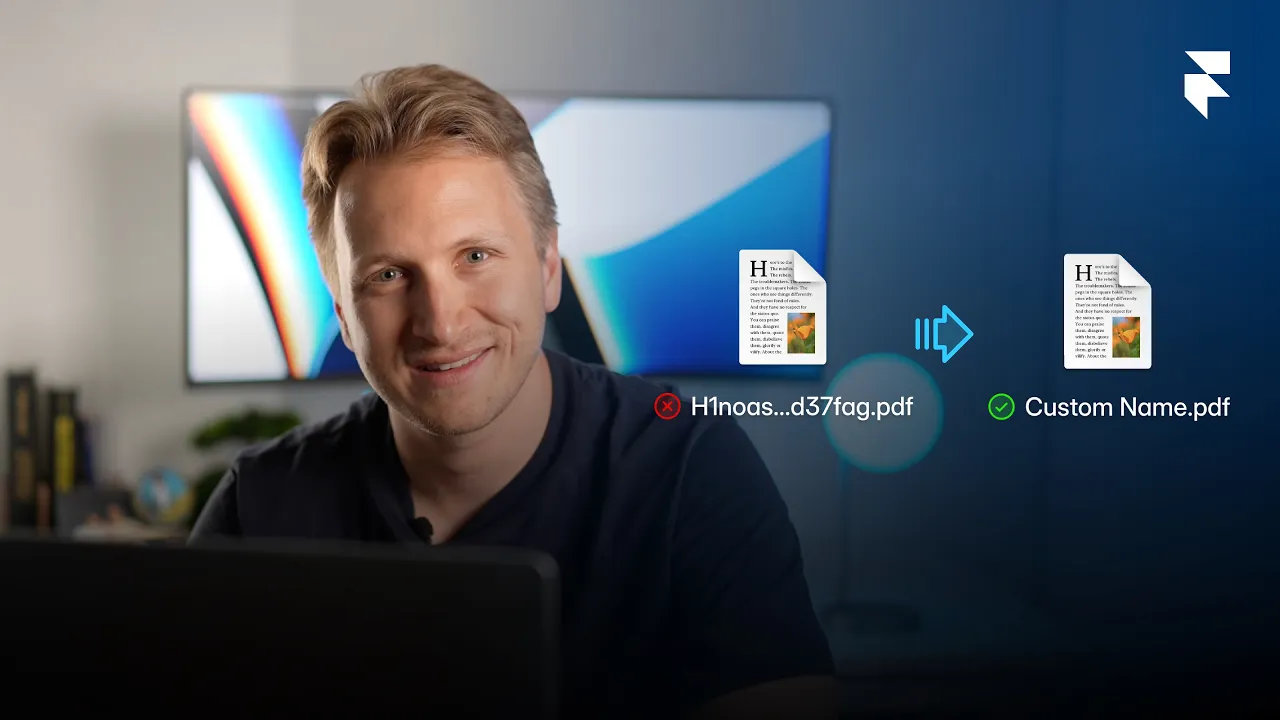
Here is the same fix on video, or read on for the written version.
Why Framer does this
Framer stores uploaded assets, including PDFs, under generated names for caching and delivery purposes. That works fine for images nobody downloads and just sees rendered on a page. But the moment a visitor downloads a file instead of viewing it, that generated name is exactly what lands in their downloads folder, and it's the first thing they see.
Set it up in four steps
Copy the Filename Download component into your project and paste it on the canvas next to your download button.
Drag your button out of the component frame. It has to sit outside the frame but stay on the same page. This is the part people get wrong.
Select the component, then pick your button under the Button setting. Any button works, it does not have to be the Framer download button.
Remove the PDF from the button itself, then add the file under Upload File in the component and type the name you want under Save As.
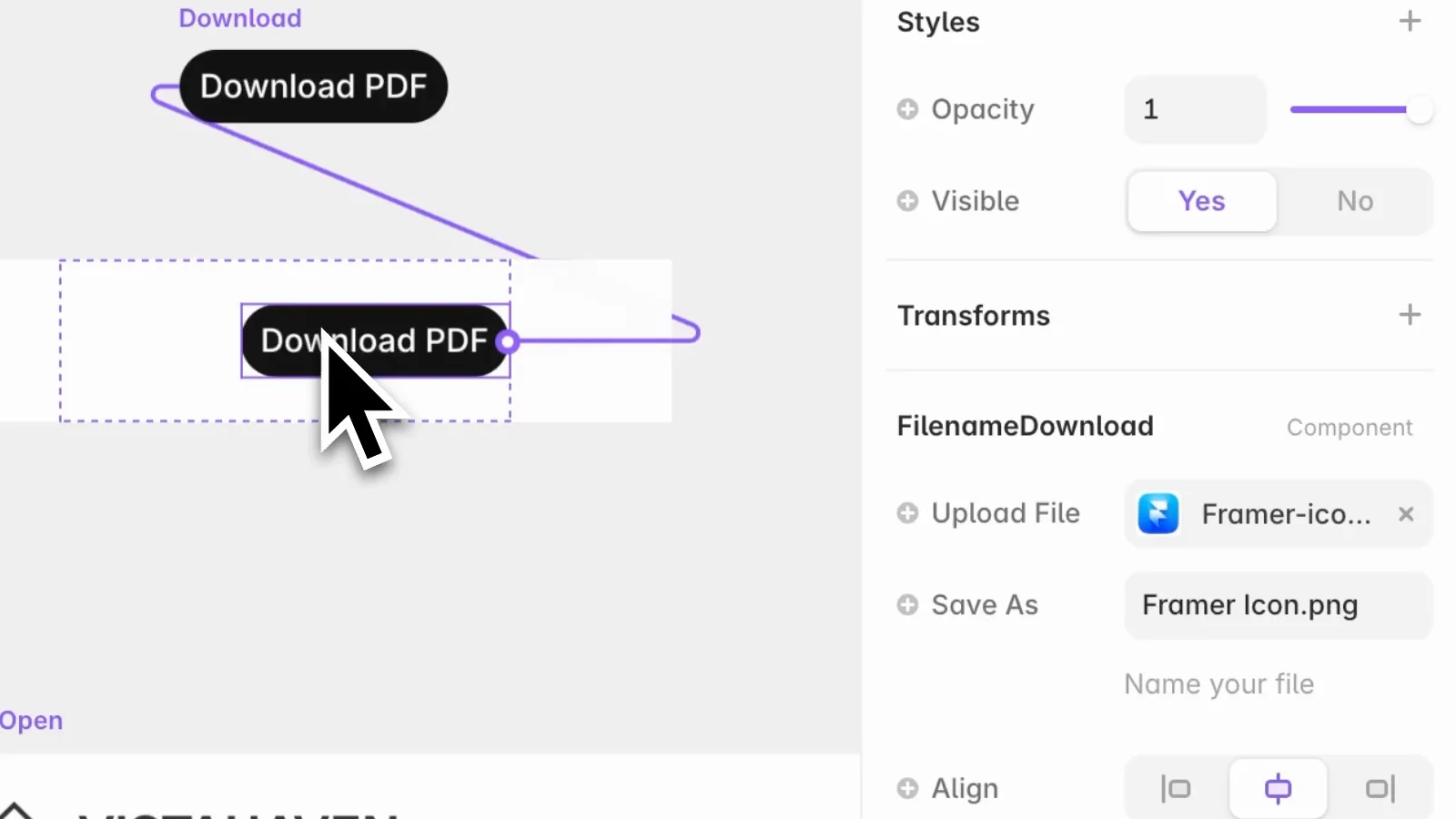
After publishing, the download arrives with that exact name, no hash, no random characters, just the filename you typed.
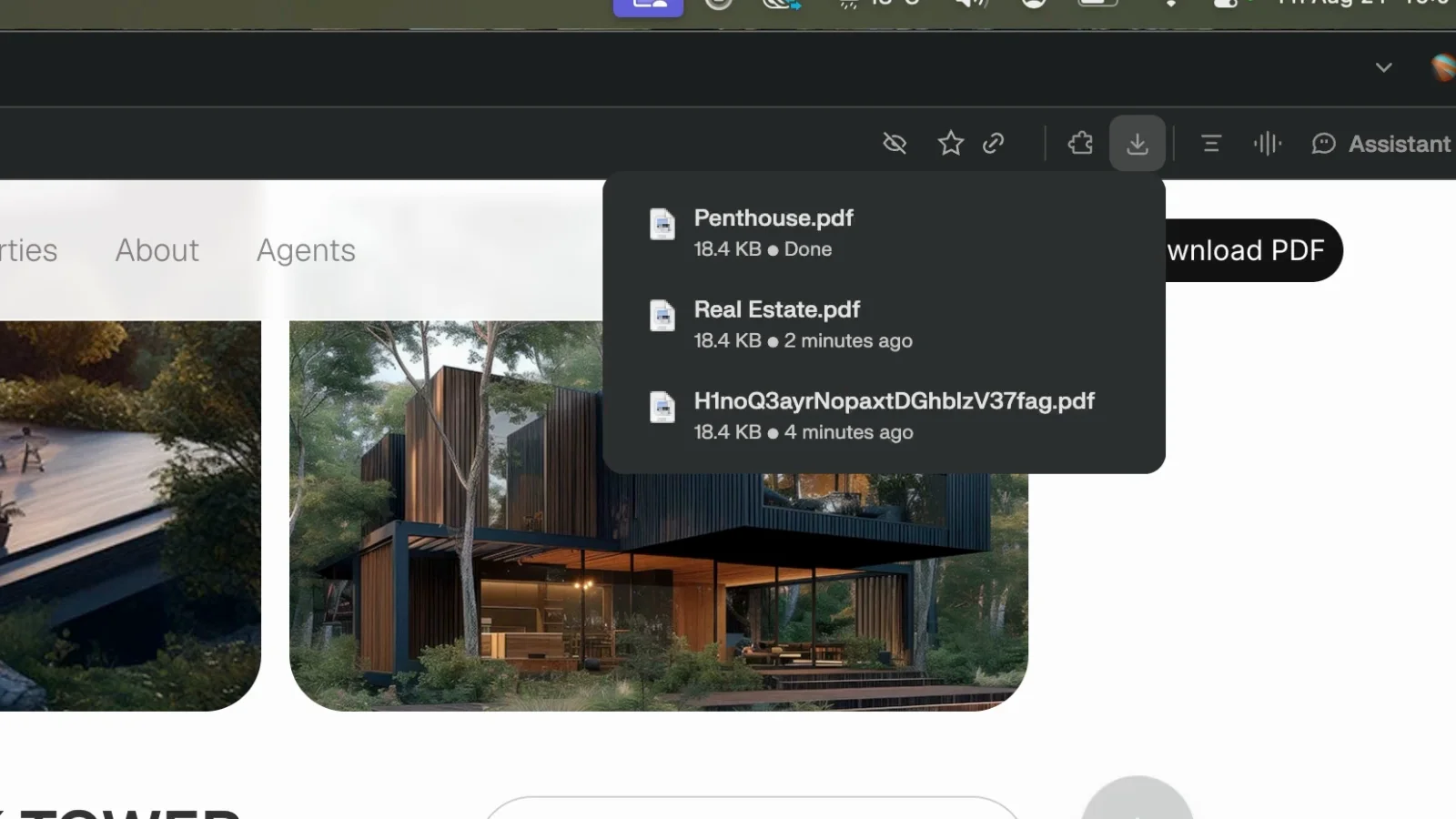
One name is rarely enough: the CMS version
A single fixed filename covers a landing page with one PDF. The real use case is a CMS collection where every entry needs its own file and its own name. Think of a real estate site where every property listing has its own exposé, or a product catalog where each item has its own spec sheet.
Add two fields to your collection: a file field for the PDF and a plain text field for the filename.
Fill both per entry. The file field takes the PDF, the text field takes the name the visitor should see, for example Penthouse.pdf.
In the component, click the plus next to Upload File and Save As and connect each one to its CMS field.
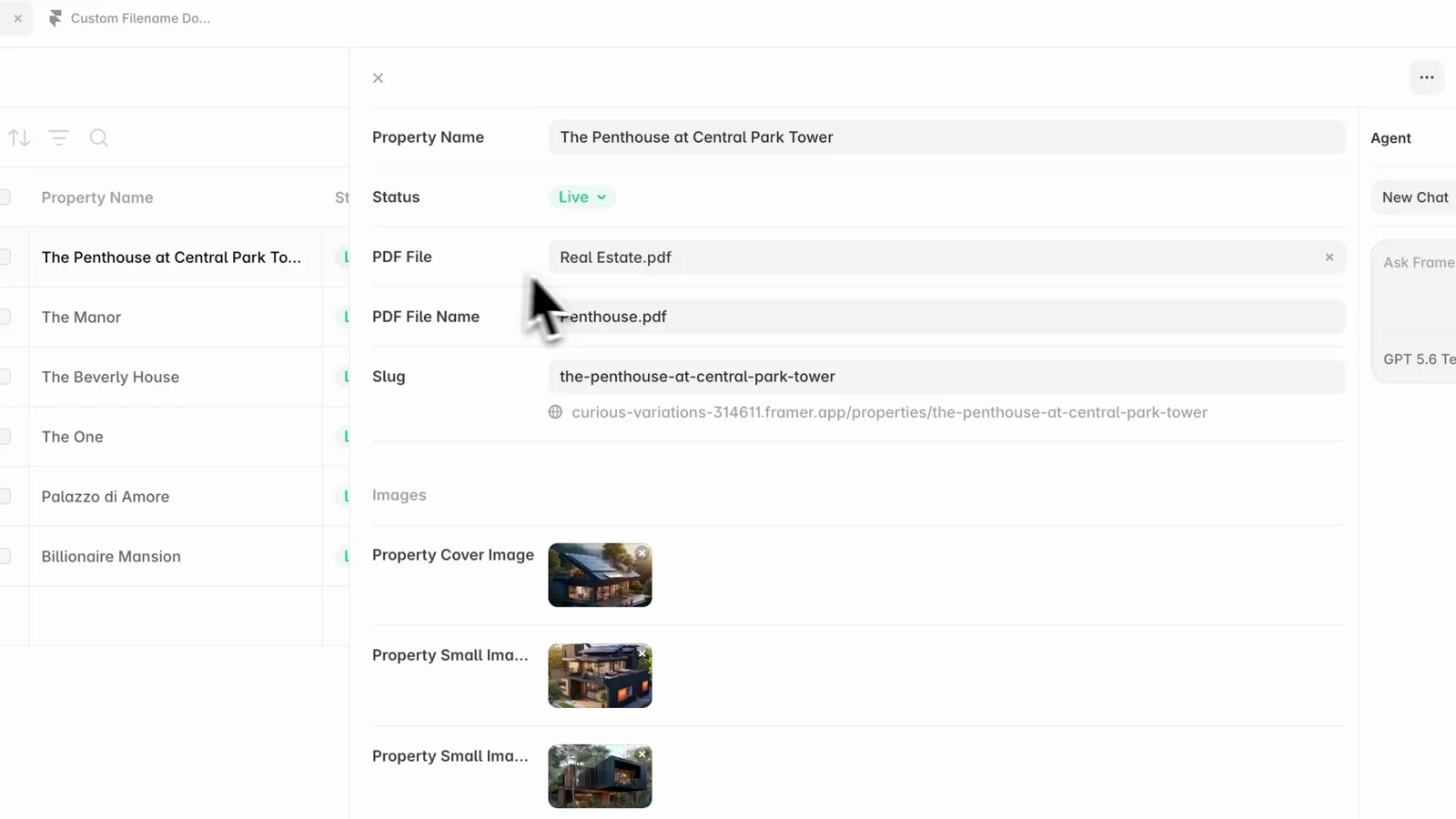
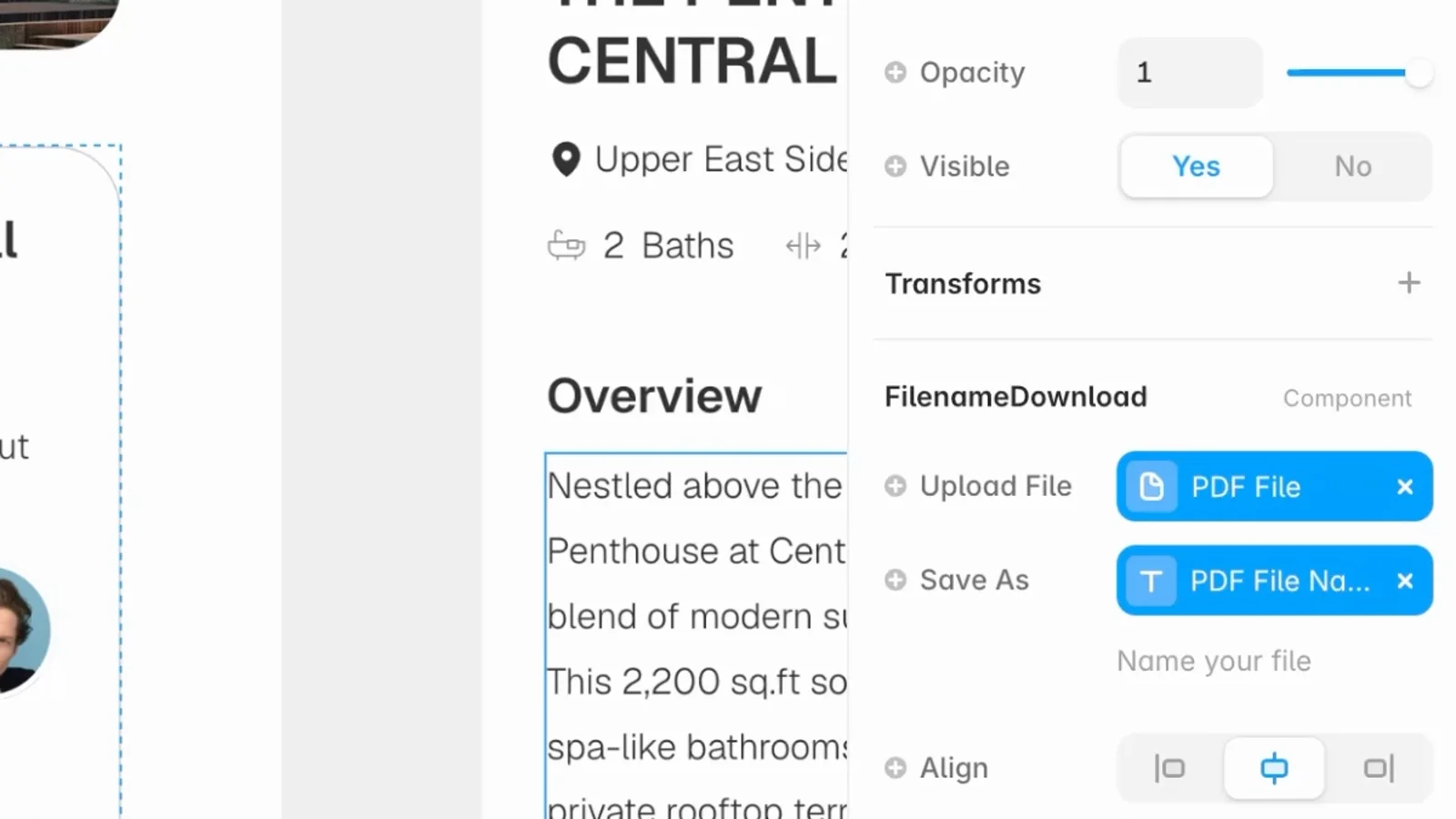
Every entry now delivers its own correctly named file, without touching the design again. Add a new listing, fill in the two fields, and the download works automatically.
What to watch out for
Keep the button outside the component frame, otherwise the component cannot use it.
Remove the file from the button so it does not fight with the component.
Include the file extension in the name field, so write Penthouse.pdf and not just Penthouse.
If the download still shows a hashed name after setup, check the button placement first. It is almost always the frame issue, not the file upload.
Get the component
You can grab the Filename Download component for Framer and drop it straight into your project.
Author

Alexander Winter
Founder & Writer
Alexander is the founder of HIVER, writing about design, branding and building products that people love to use. He is deeply rooted in SaaS, tech marketing and branding, and brings strong expertise in video production and storytelling.